Ever spent hours creating a design… only to stitch it out and see gaps, shifting outlines, tangled jump threads, or thread breaks? These are some of the most common machine embroidery digitizing problems. The good news is they usually come down to a few fixable settings.
This is a high-level overview of the most common digitizing issues in embroidery, so you can identify what’s going wrong fast and apply a quick fix.
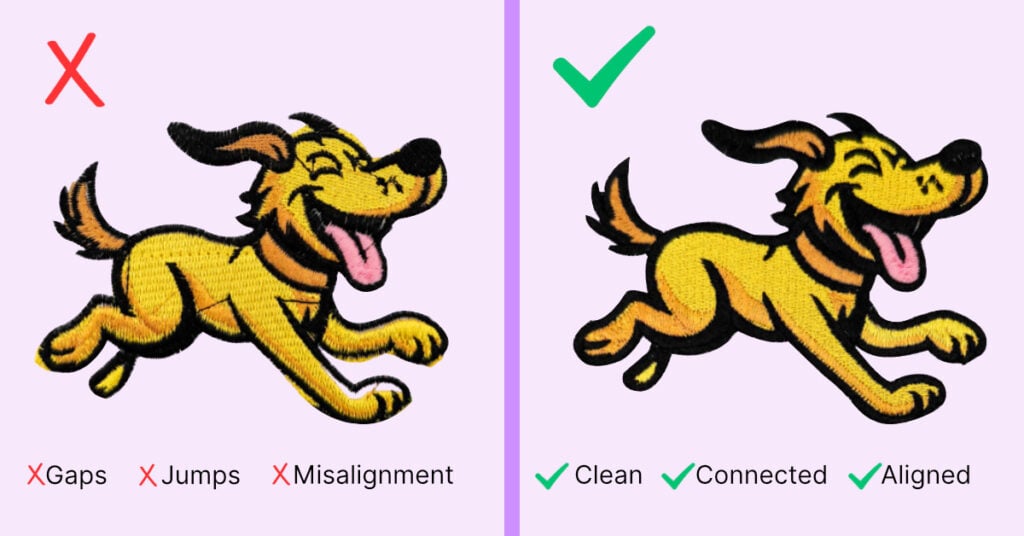
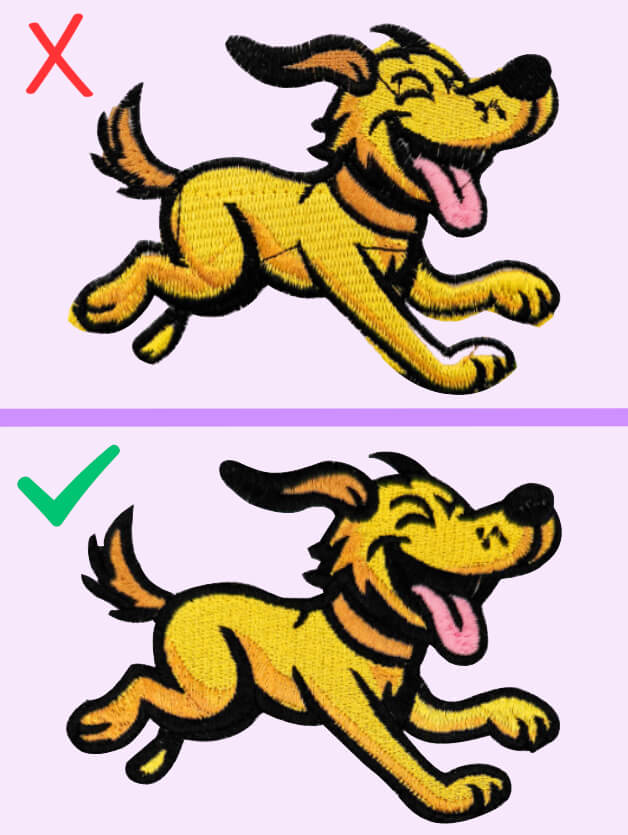
Table of Contents
- Start Here: Identify Your Digitizing Problem (Quick Diagnostic)
- Problem 1 — Too Many Jump Stitches & Trims
- Problem 2 — Gaps and Empty Spaces in Your Embroidery Process
- Problem 3 — Misalignment, Shifting, and Outlines Not Matching
- Problem 4 — Thread Breaks and Needle Breaks
- Problem 5 — Puckering, Warping, and Wavy Fabric
- The Fastest Way to Improve Results (Without Guessing)
- FAQ
Start Here: Match the Symptom (Quick Diagnostic)
Use your stitch-out symptoms to pinpoint the digitizing setting that needs adjustment. These symptoms usually point to a specific setting (or combination of settings).
- Tangled “spiderweb” threads: jump stitches + excess trims
- Gaps / thin coverage: push & pull compensation
- Shifting / misaligned outlines: underlay + stitch order + compensation
- Thread/needle breaks: density + overlap (also check tension)
- Puckering / wavy fabric: density + underlay + stitch angles
Jump Stitches & Excess Trims
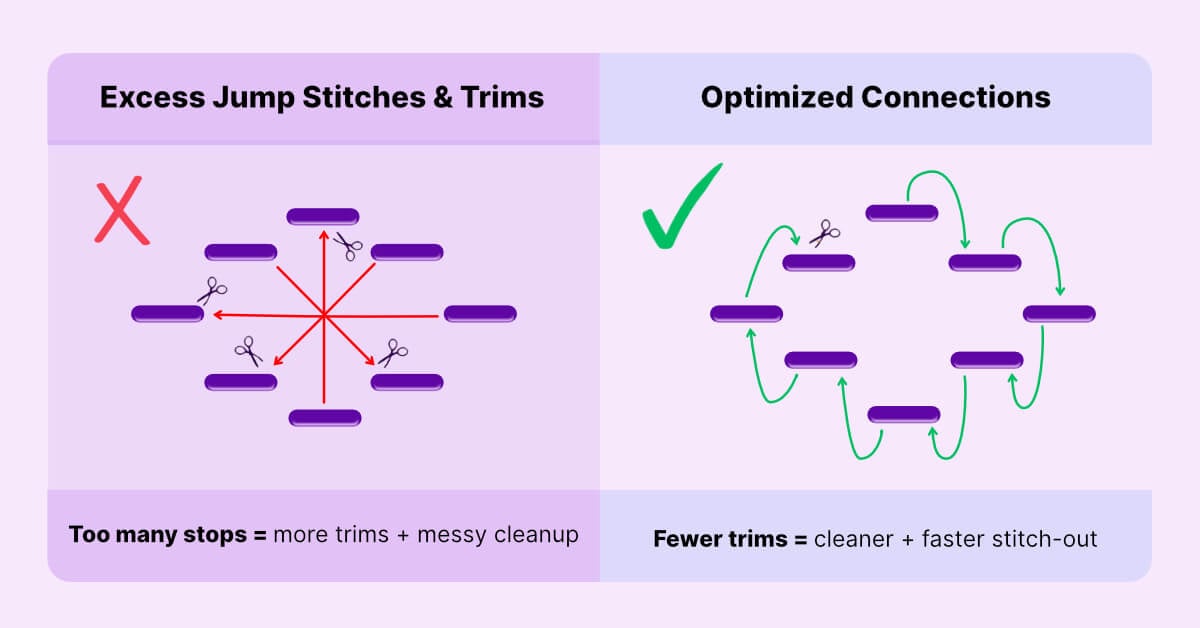
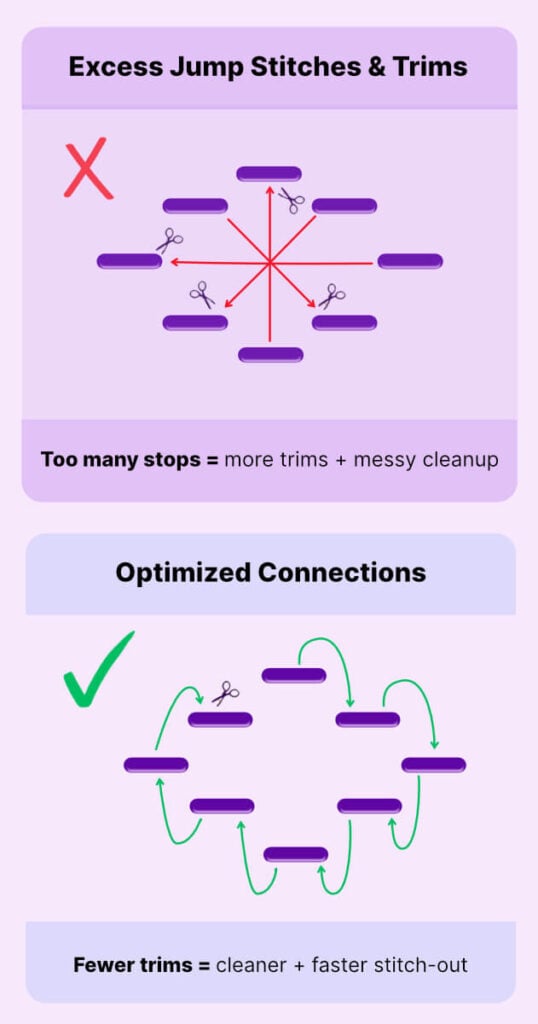
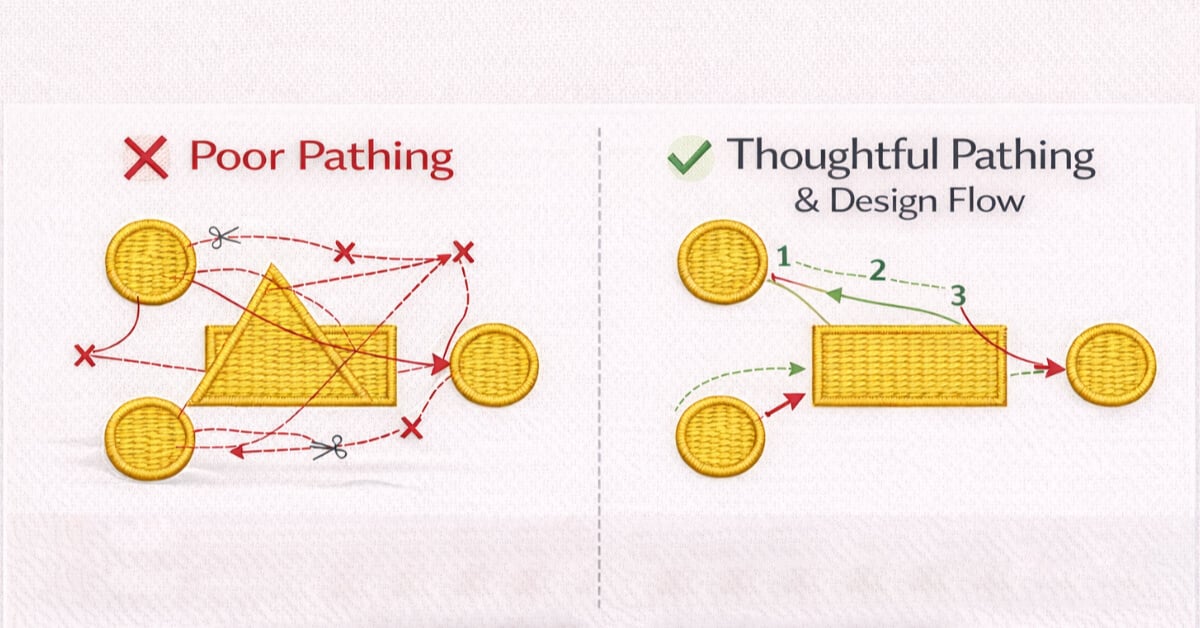
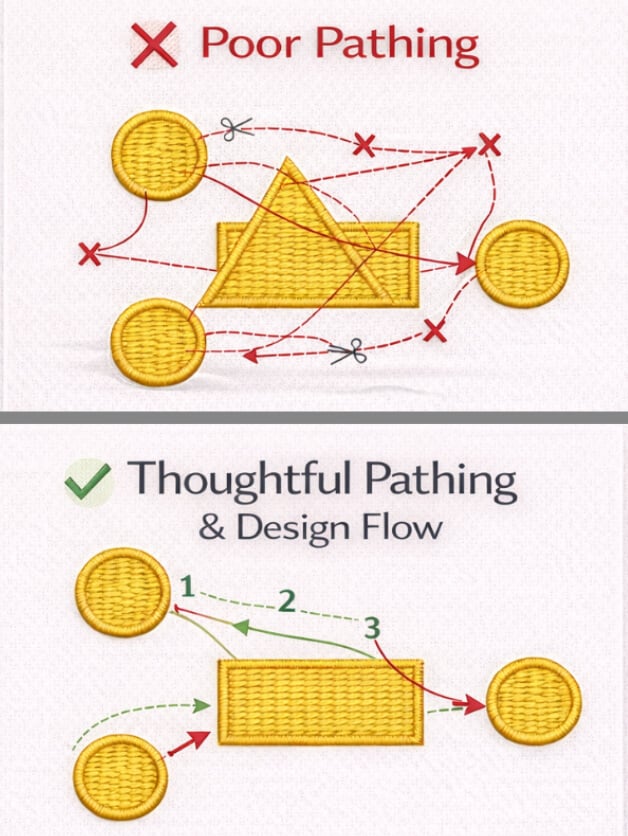
Jump stitches happen when the machine has to move from one area of the design to another without stitching in between. Trims are the thread cuts the machine makes to end one section before moving to the next. A few jumps and trims are normal — but too many can lead to messy results and slow stitch times.
What it looks like
- Excess trims and jump threads
- Tangled “spiderweb” thread between sections
- Messy cleanup on the back of the design
- Longer stitch time (especially frustrating on single-needle machines)
Why it happens
Most of the time, it’s a pathing issue:
- Pathing isn’t optimized from shape to shape
- Start/stop points aren’t aligned between objects
- The design keeps “stopping and jumping” instead of flowing logically
Quick Fixes
- Reduce trims by improving pathing and connecting shapes logically
- Use short travel stitches to connect areas where stitches will be covered later
- Digitize in a logical order (finish a section before jumping to another)
How to fix it faster in Embroidery Legacy Software
While creating in your Embroidery Digitizing Software, smart tools like these can speed up cleanup:
- Smart Join
- Auto Trim
- Auto Lock
Smart Join automatically adjusts start and stop points to improve connections between objects. This reduces unnecessary jump stitches and trims.
Gaps and Thin Coverage
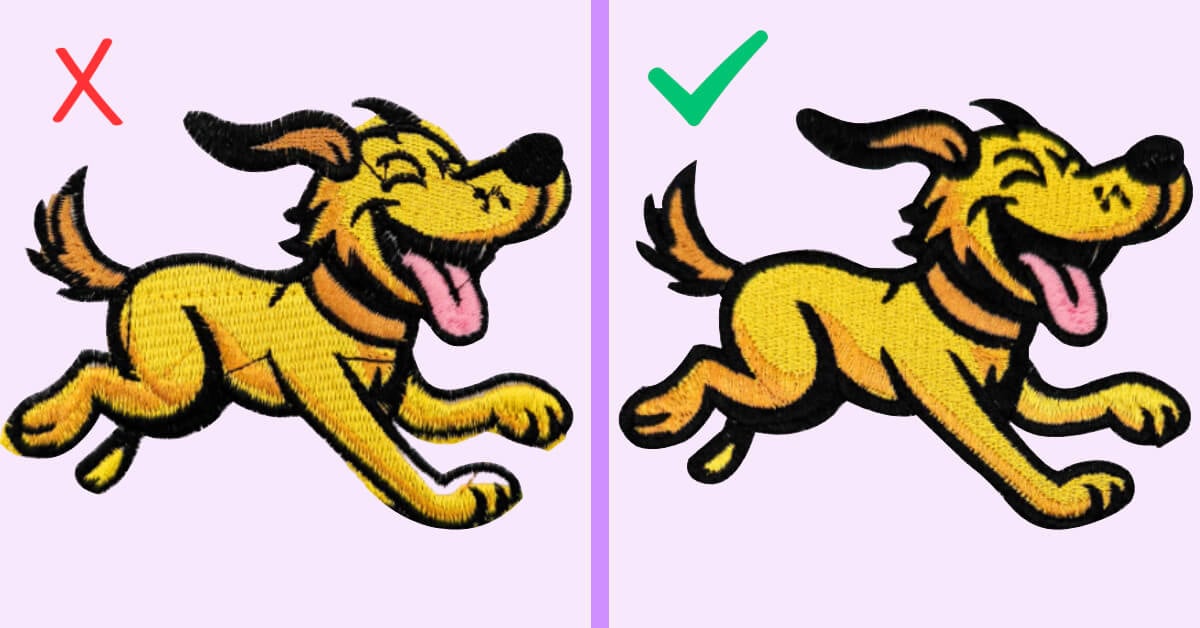
Gaps happen when coverage shrinks during stitching. Even when your shapes look like they touch on-screen, real fabric and thread tension can pull stitches inward.
What it looks like
- Visible gaps where shapes should meet
- Coverage looks thin or incomplete
- Satin columns don’t “seal” cleanly against edges
Why it happens
Most gaps come down to push-and-pull compensation not being applied enough. In embroidery, thread tension and fabric movement are real, so your design needs compensation to stitch out as intended.
Fabric matters too: stretchier fabrics usually show the problem more.
Quick Fixes
- Increase pull compensation slightly and test
- Don’t “fix gaps” by blindly increasing density first
- Test on the real fabric + stabilizer combo you’ll actually use
Use Recipes to Stop Guessing
One of the fastest ways to improve coverage (especially for beginners) is by using recipes. Built-in presets in Embroidery Legacy Software that help you start with proven settings instead of guessing.
Professional presets can save time because you don’t have to rebuild your setup from scratch every time.
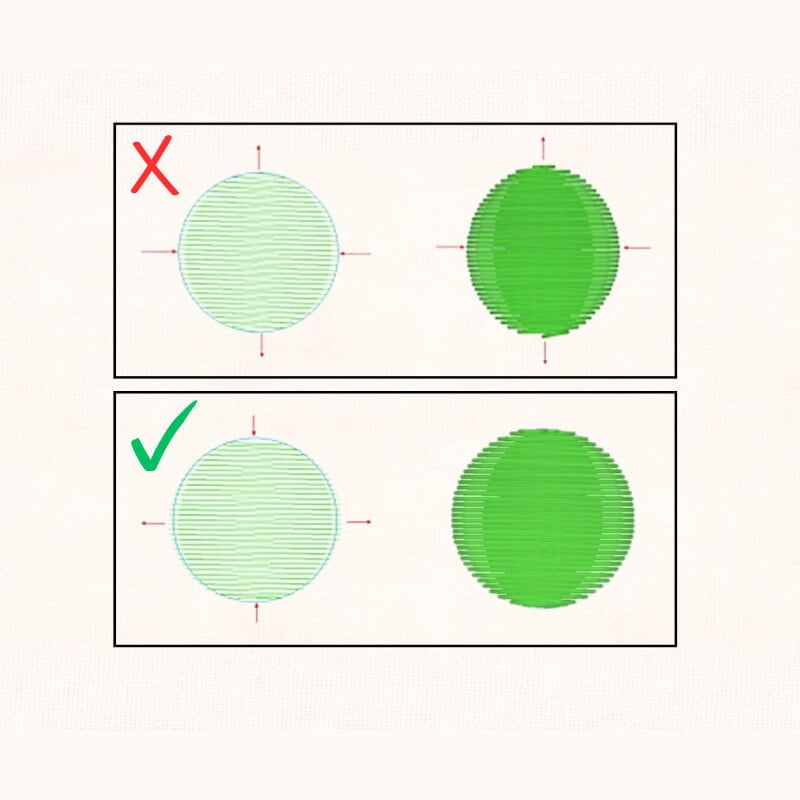
Misalignment and Shifting Outlines
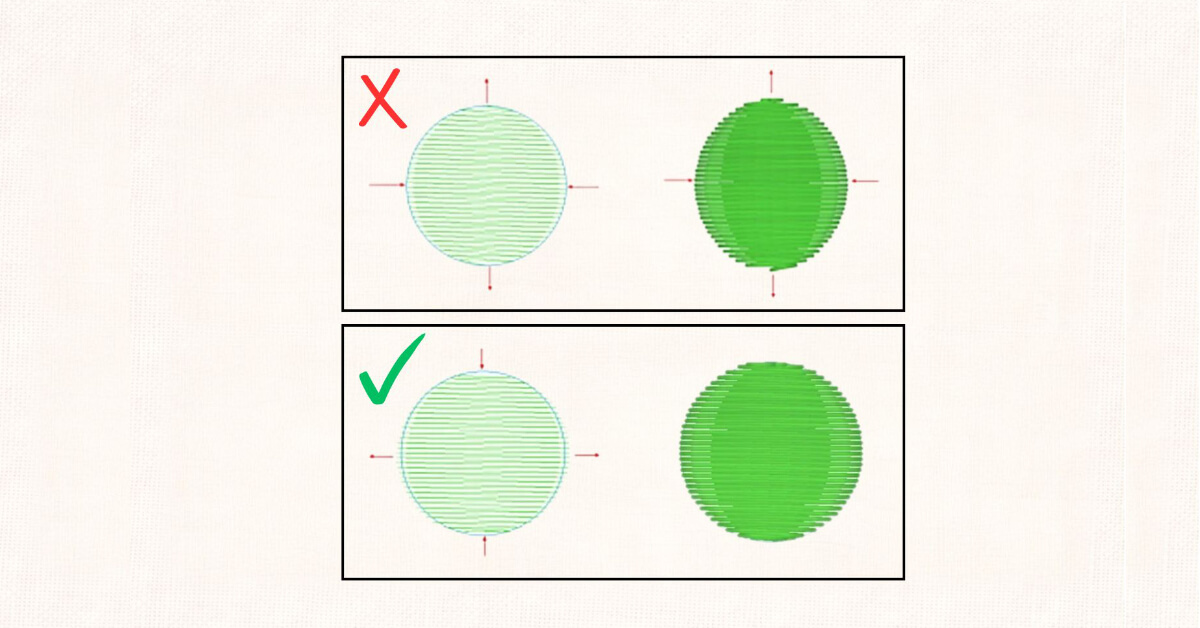
Misalignment is when outlines don’t land where you expected, details drift, or shapes look “off” even though your artwork looks correct.
What it looks like
- Outlines don’t sit cleanly on top of fills
- Details drift or look offset
- Shapes shift during the stitch-out
Why it happens
This is usually caused by a combination of:
- Not enough (or incorrect) underlay
- Poor stitch pathing or stitch order
- Compensation issues that make movement more noticeable
Underlay basics
Think of embroidery underlay as the foundation of a house. It stabilizes the fabric and gives top stitches something to “hold onto,” especially on larger shapes.
In general, bigger shapes often need more underlay than small shapes.
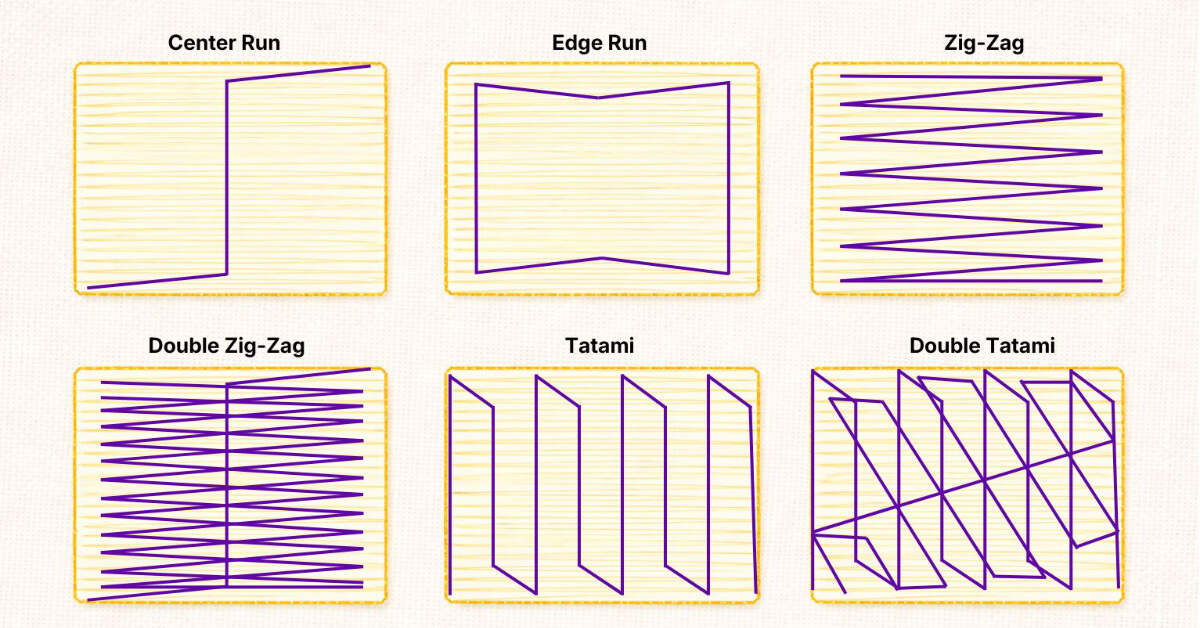
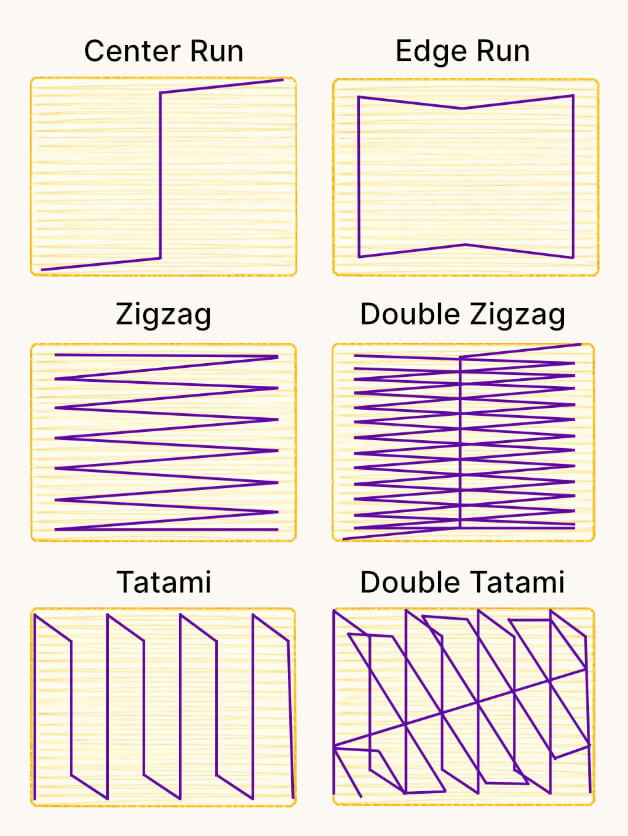
Underlay types (keep it simple)
Different underlays serve different purposes depending on the object:
- Center Run / Edge Run (light support for satin stitches and fine details)
- Zigzag / Double Zigzag (often used for extra support on wider satin stitches)
- Tatami / Double Tatami (commonly used under fill stitches)
Thread Breaks and Needle Breaks
Thread breaks can feel random… but in digitizing, they often trace back to one thing: too much stitch stress in the same area.
What it looks like
- The thread snaps mid-stitch
- Needle breaks
- The thread pops out of the needle
Why it happens
Common digitizing causes include:
- Too many stitches are stacked in the same spot
- Overlapping fills that create extreme density (“bulletproof” designs)
- Underlay that’s either missing (unstable) or excessive (too thick)
Quick Fixes
- Avoid stacking duplicate fill shapes on top of one another
- Use a baseline density: 0.4 mm is a common fill starting point
- Use an underlay where needed — not missing, and not excessive
Don’t ignore the machine setup
Some thread breaks are also caused by the embroidery setup:
- Machine tension
- Stabilizer choice and hooping stability
Digitizing and embroidery setup work together — fixing one without the other can still leave problems.
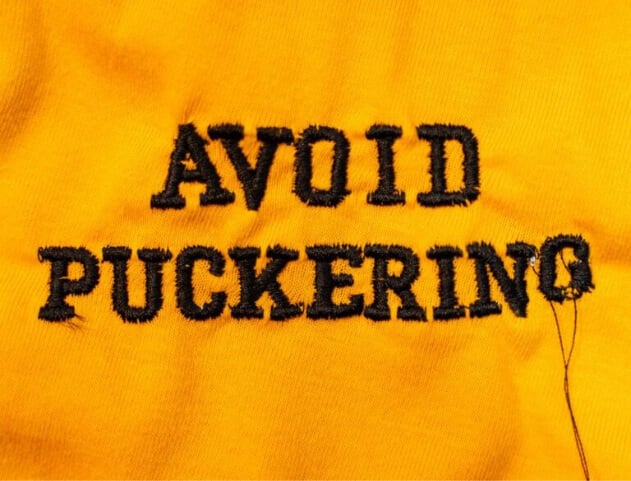
Puckering and Wavy Fabric
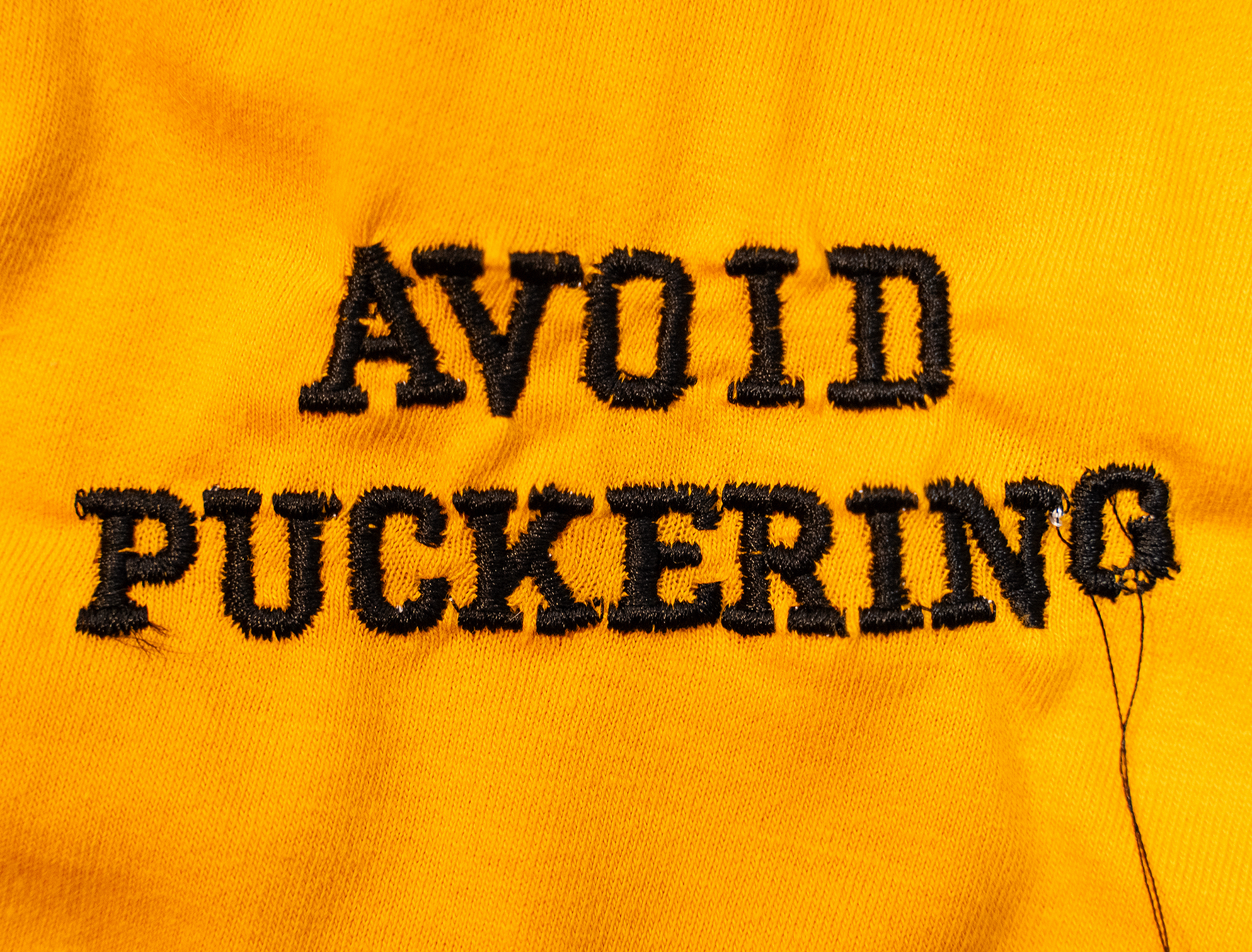
Puckering occurs when stitch tension draws the fabric inward, creating ripples around the design. It might not look terrible right away, but it often becomes more obvious after washing — especially on shirts.
What it looks like
- Fabric pulls and ripples around the design
- Warping or “wavy” areas after stitching
- Looks worse after washing/drying
Why it happens
Most puckering comes from:
- Density that’s too high for the fabric
- Missing or incorrect underlay
- Stitch angles and segments “fighting each other” (pulling in different directions)
Quick Fixes
- Reduce density to give stitches breathing room
- Use the right recipe for the fabric
- Keep fills consistent — a single fill direction/angle can stabilize the design
The Fastest Way to Improve Results (Without Guessing)
Most machine embroidery digitizing problems trace back to five core settings. When you know what each one controls, troubleshooting becomes straightforward:
- Connections (reduces jump stitches and trims)
- Compensation (improves coverage and limits gaps)
- Underlay (stabilizes shapes and supports clean alignment)
- Stitch order (limits movement and distortion during stitching)
- Density (prevents thread breaks and puckering)
To achieve consistent results across different fabrics and designs, the fastest path is to learn the underlying digitizing theory. The Digitizing 101 Course breaks these settings down step by step so you can make confident adjustments rather than guess.
Next step: Use tools that simplify the process
When you’re ready to apply those principles with less manual setup, Embroidery Digitizing Software was built with embroiderers in mind. It keeps the workspace clean and includes time-saving tools and presets that help streamline connections, underlay, and setup—without clutter.