
If you’re an embroidery beginner this article is for you! You’ve finally found the perfect embroidery design online and can’t wait to see how it will stitch out. However, here’s the tricky part, you don’t know how to transfer the design from your computer to the embroidery machine!
Stay calm and stitch on! Let’s discuss how you can transfer your embroidery designs from your computer to your machine in three simple steps.
Step 1: Finding Your Machine Embroidery Design
I’m sure we can all agree that finding quality embroidery designs online can be either a hit or a miss. Not all embroidery designs are the same. What looks good on your computer screen may not look good when embroidered (and no one likes bulletproof designs!).
Did you know at Embroidery Legacy we have 30,000 quality designs to choose from? From applique and mylar to true vintage lace, we have something for your next embroidery project!
After browsing the site I’ve decided on this “Elephant with baby” embroidery file.
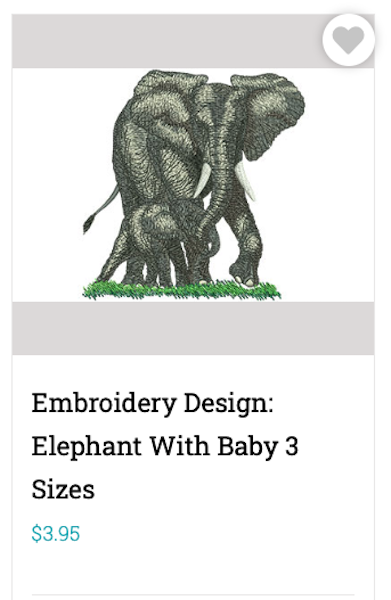
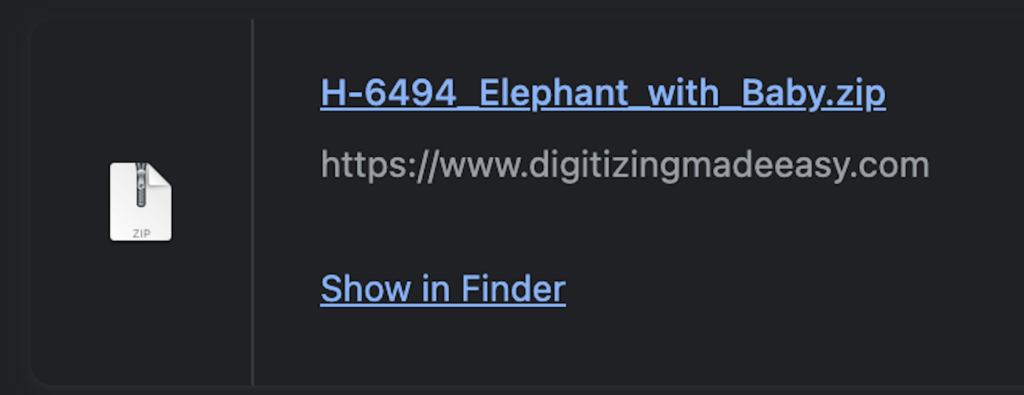
Now that I have my design selected I’ll simply add it to my cart and proceed to check out. After I successfully download my new embroidery design it will appear as a zip file in my downloads section.
To see the different file formats included in the zip file, simply double-click the folder.
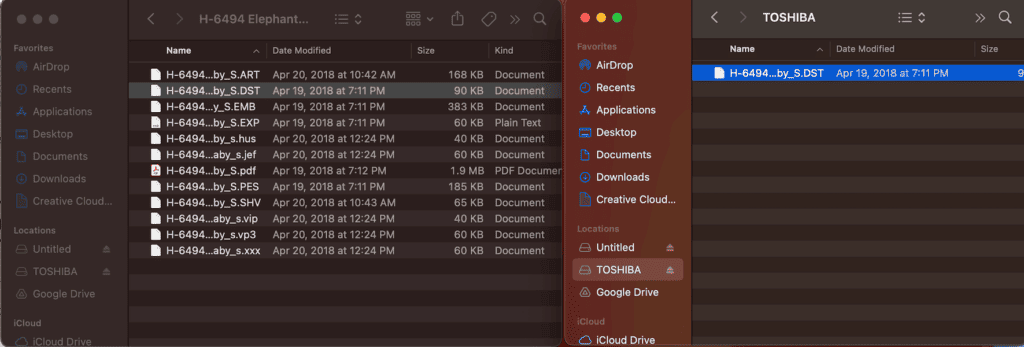
Choose the stitch file format needed for your embroidery machine brand.
Step 2: Downloading Embroidery Designs to USB Stick
Now that we have our design downloaded to our computer we’re going to need a USB stick thumb drive. The brand/type of USB does not typically matter as long as it has enough free space on it for the design.
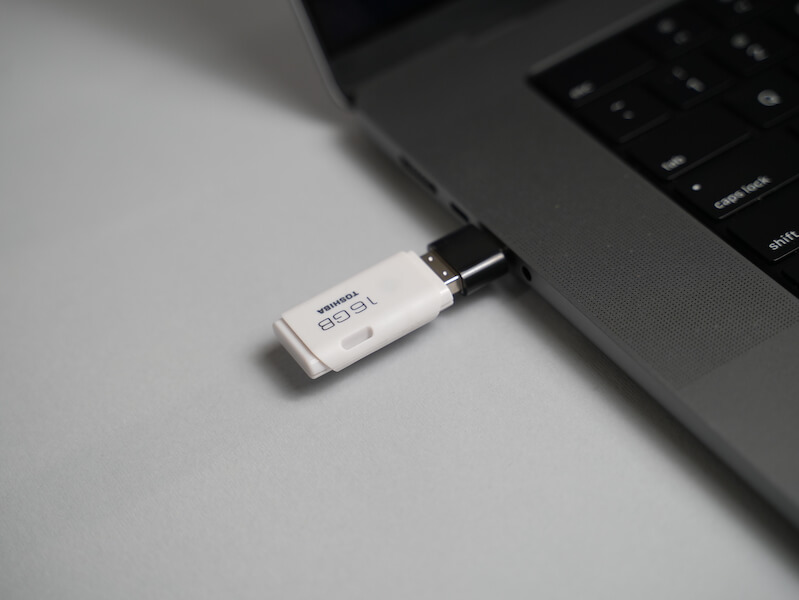
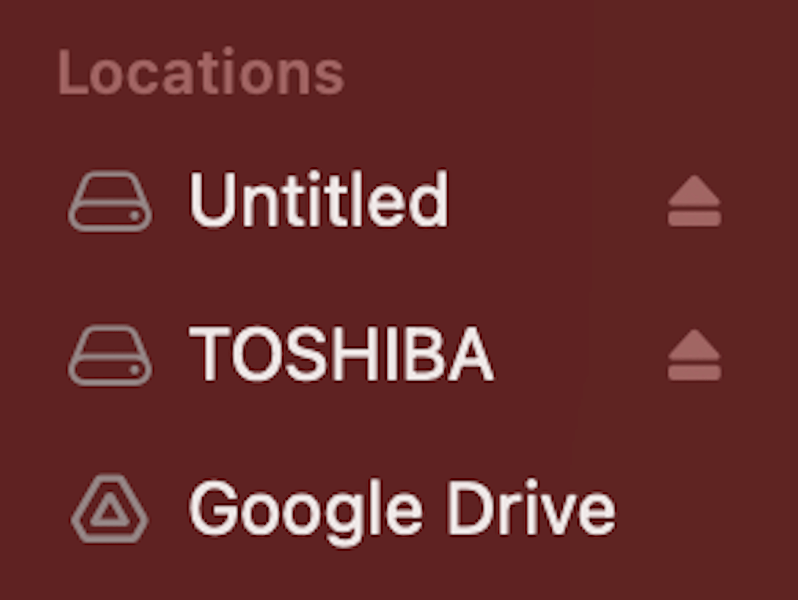
Plug your USB thumb drive into your computer via the USB port and open it. As you can see, it appeared as “TOSHIBA” on my computer
Next, you will select the design file format you need from the zip folder we downloaded. Because I’m using a Babylock machine, I’m going to select the PES file. Make sure you select the correct file type for your machine.
Click your selected file and either copy and paste it onto the USB folder or drag and drop it.
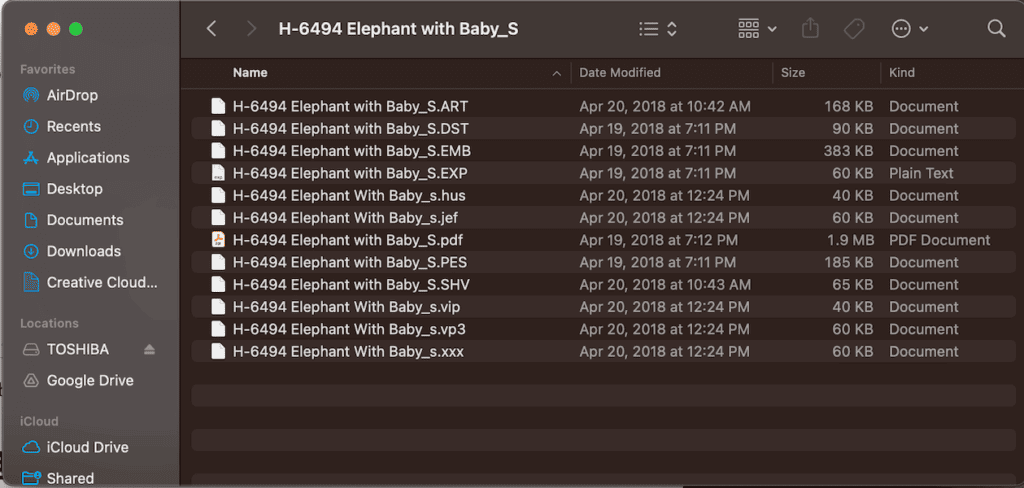
Now that our design is on our USB drive we’re ready to put it onto our machine!
Step 3: Transferring Embroidery Designs to Your Machine
We can now put the design on the embroidery machine! Ensure that you connect the USB and switch on the machine. Now look for the USB logo on your machine, here’s what the USB port looks like on mine.
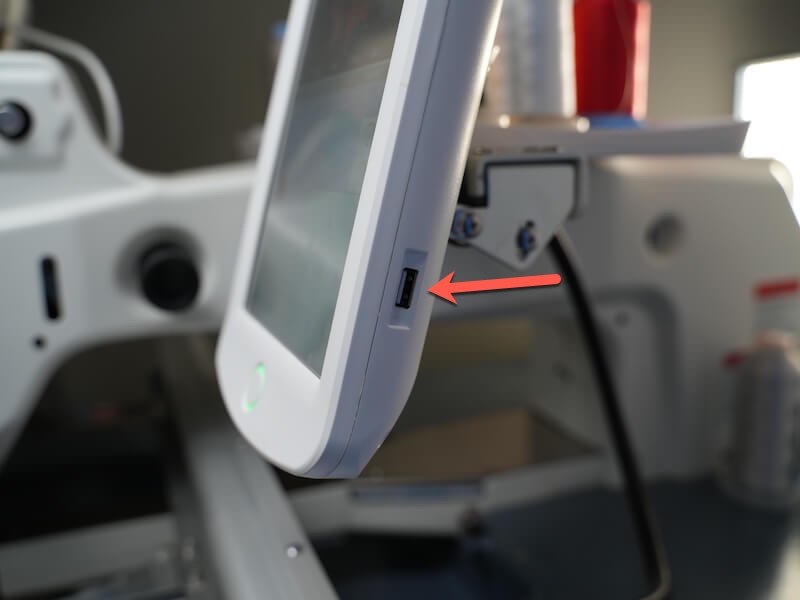
Plug the USB into the machine.
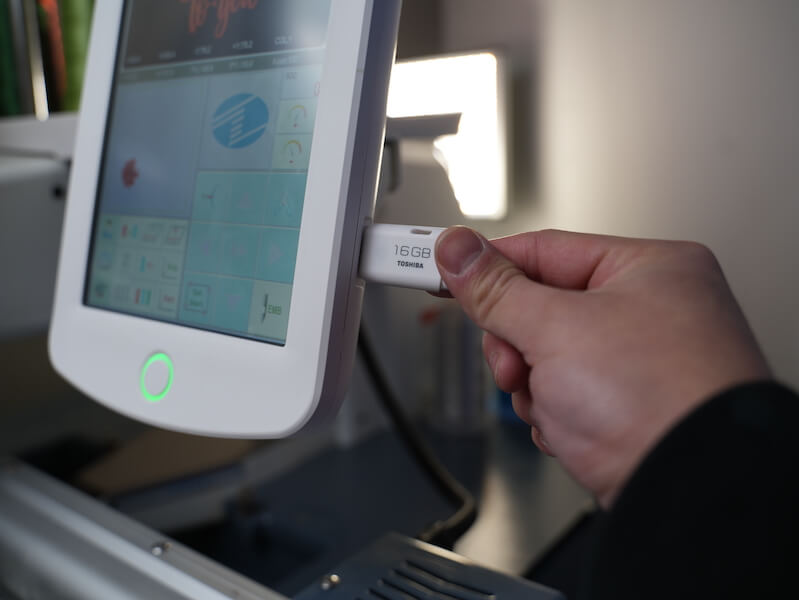
For the final step, click the USB logo on the screen of your machine.
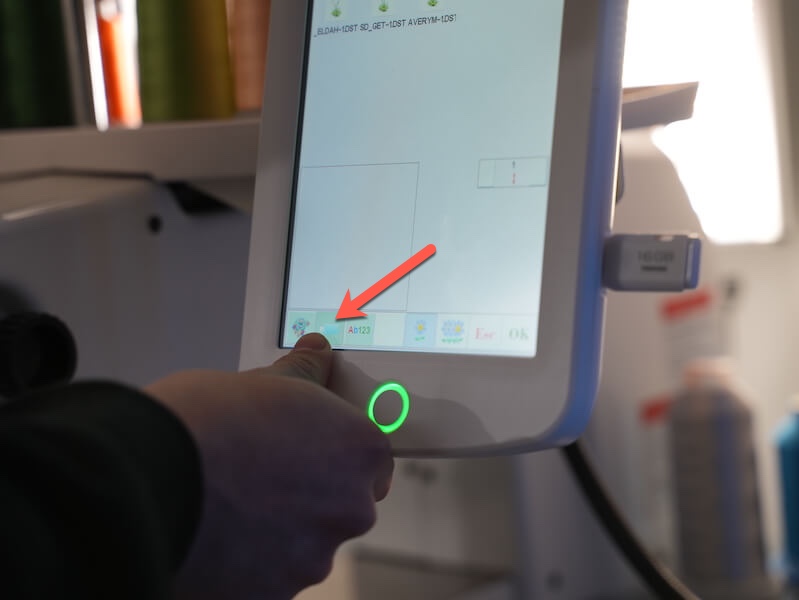
Now, you can browse through the files loaded on the USB stick. Select the design you put onto the USB, select your design colors, hooping your garment, and you’re ready to begin stitching!
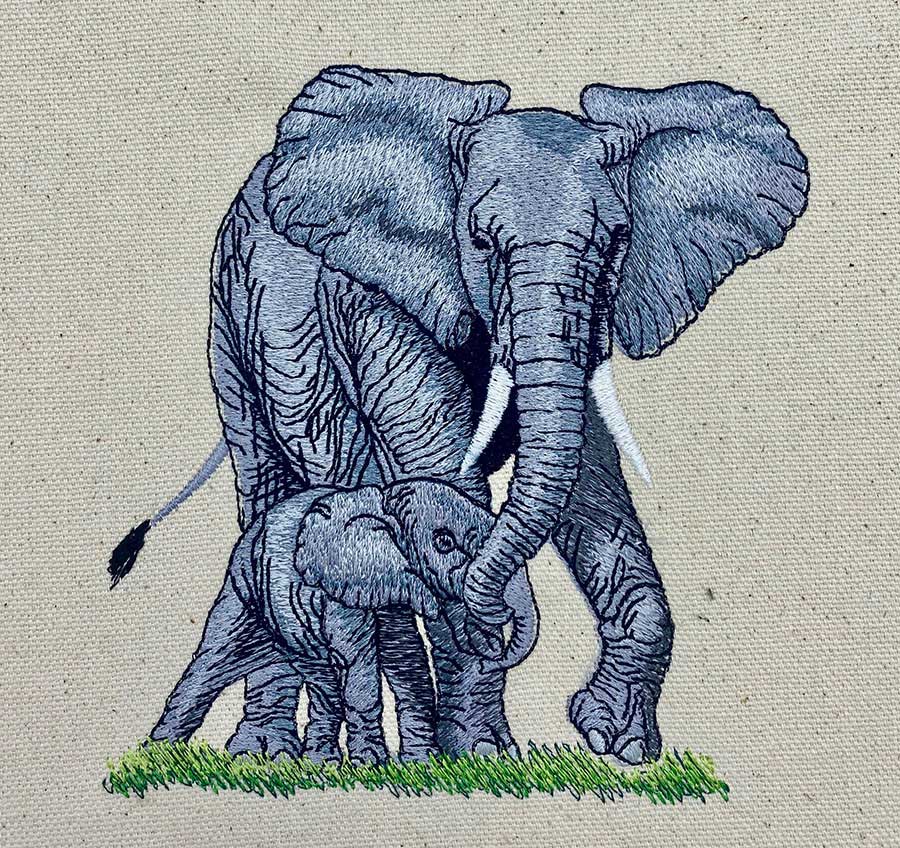
How To Transfer Embroidery Designs From Computer To Machine
Want a super quick visual tutorial? Check out this short reel where I show you how easy downloading your designs to your machine truly is!
Now that we’re past the learning curve, it’s time to explore and have fun! What’s the first design on your embroider-to-do list?
Happy stitching!


Good facts, Thanks a lot.
Thankyou for helping out, great info .
Major thanks for the blog article.Thanks Again. Will read on…
I don’t normally comment but I gotta tell appreciate it for
the post on this perfect one :D.
Happy to help 🙂 Thanks for commenting
What’s up friends, nice piece of writing and pleasant urging
commented here, I am genuinely enjoying by these.
Glad to hear it Bart, happy stitching!