If you’re new to embroidery, or an experienced hobbyist or small business owner looking to create your own logo designs, this guide is for you. Having created logo designs for dozens of Fortune 500 companies worldwide (including Coca-Cola, the NFL, and John Deere), I’m happy to teach you the ropes that have allowed me to win over 30 commercial awards for digitizing.
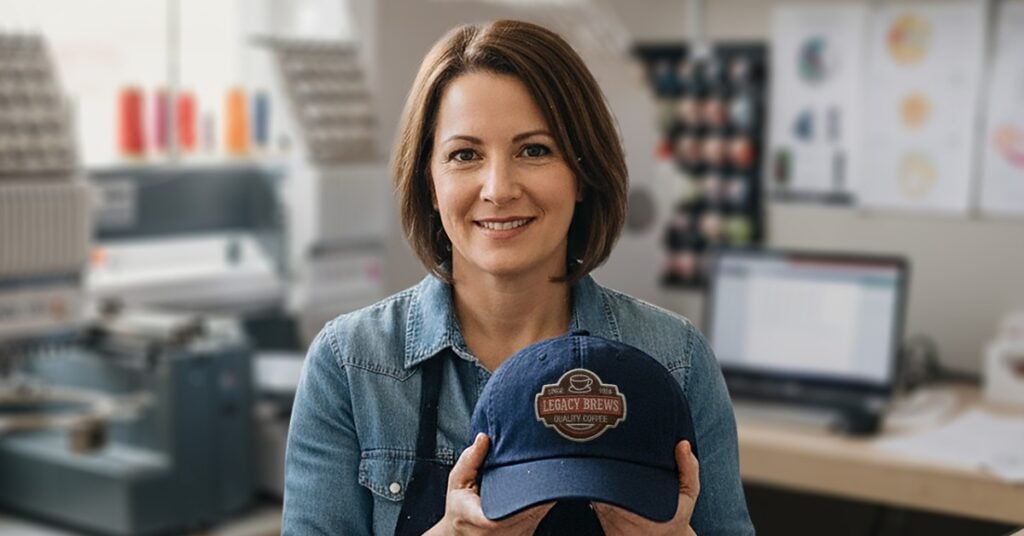
Now, let me start by saying: embroidery logo digitizing can feel overwhelming. But with the right workflow, it can be an easy, rewarding, and profitable. In this guide, you’ll learn the steps to digitize a logo for embroidery. You’ll create clean, professional embroidery files that stitch reliably across different garments.
What Is Logo Digitizing in Embroidery?
Logo digitizing is the process of using embroidery digitizing software to turn digital artwork into stitch-ready embroidery files.
How to Digitize a Logo for Embroidery (Overview)
If you’re more of a visual learner, here’s a quick video I assembled to teach you how to easily digitize a logo:
This video demonstrates the same logo digitizing workflow outlined in the steps below.
Okay, let’s dive in! Here’s a simple workflow that saves time when digitizing a custom embroidery logo:
- Import and size your logo artwork for the final placement.
- Choose fabric settings and underlay based on the garment type.
- Digitize the main logo shapes using appropriate stitch types.
- Digitize logo text with proper stitch widths for clarity.
- Test stitch the design and refine pathing, density, and trims.
The sections below walk through each step in more detail.
Step 1 – Import and Size Your Logo Artwork
Start by importing your logo as backdrop artwork into your software. Often, logos arrive as digital files with excess white space. Sizing the design based on real embroidery dimensions, not the image canvas.
To make sizing easier, create a sizing box (example, 3″ × 3″) and scale the logo within it. Typical sizes include:
- Left chest logos: 2.5″– 4″ wide
- Hats: Often closer to 2″– 2.5″ tall
- Sweaters or jackets: Around 3″ tall, depending on placement
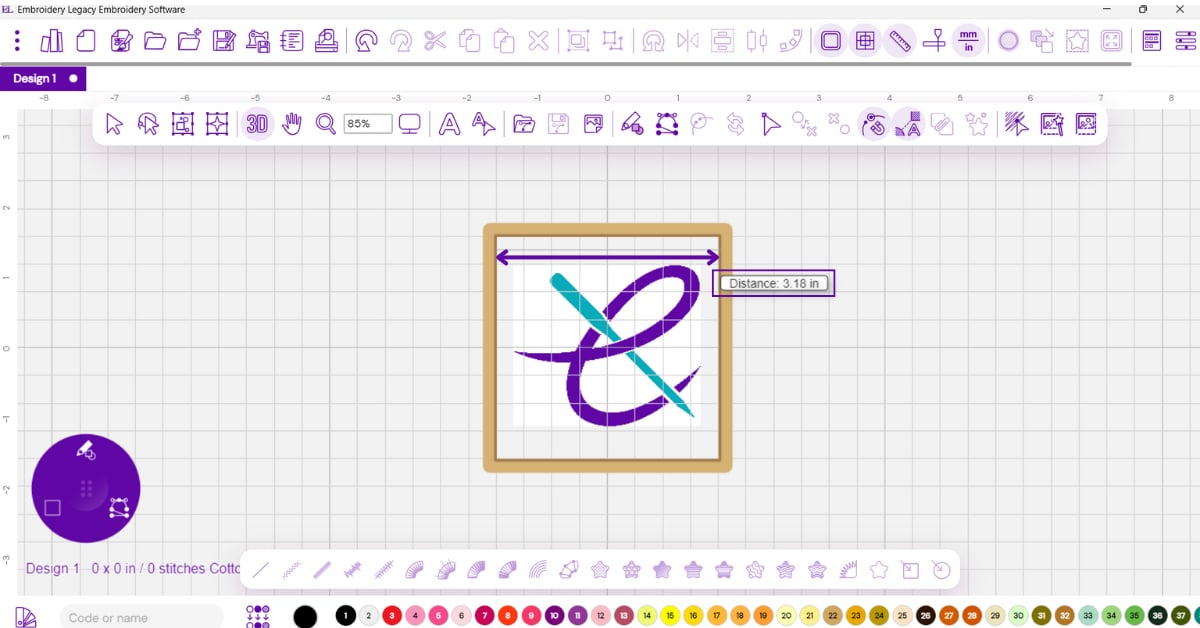
Before you finalize the size, consider the design’s complexity. Logos with fine details or small lettering may not work well in small placements, like a left chest logo. In those cases, simplifying the logo or creating a placement-specific version usually produces better results. Correct sizing at this stage prevents unnecessary rework later.
Step 2 – Choose Fabric Settings
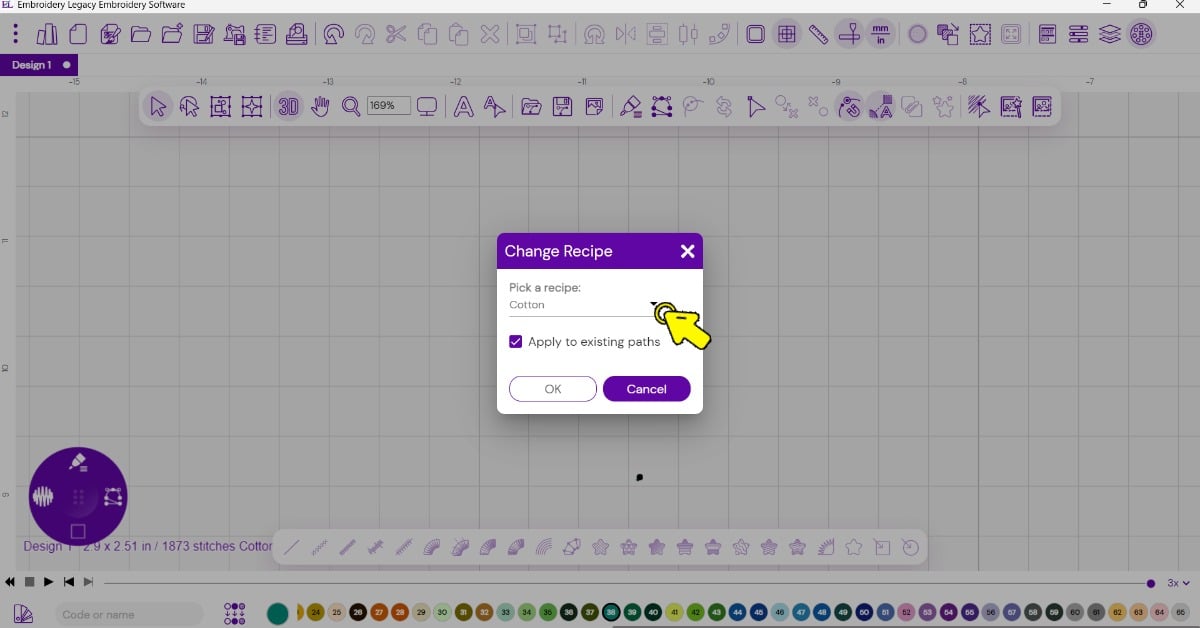
Fabric choice has a major impact on how a logo stitches out. Don’t worry — modern software makes this much easier. For example, Embroidery Legacy’s Embroidery Digitizing Software includes built-in fabric recipes. With one click, you can apply consistent settings for wovens, knits, and caps.
For example:
- Cotton polos: Moderate underlay and pull compensation
- PK knit or performance fabric: More support and compensation
- Caps: Reduced pull compensation but strategic underlay
Step 3 – Digitize the Main Logo Shapes
Every logo is different, which means there’s no single set of stitch instructions that works for every design. You choose how to digitize the main logo shapes depending on the artwork’s size, complexity, and the fabric you use.
Most logos use two main stitch types:
- Satin stitches for bold elements
- Running stitches for travel paths and small details
As a rule of thumb, keep satin areas at least 1 mm wide. This helps the design stitch cleanly and hold up across different fabrics.
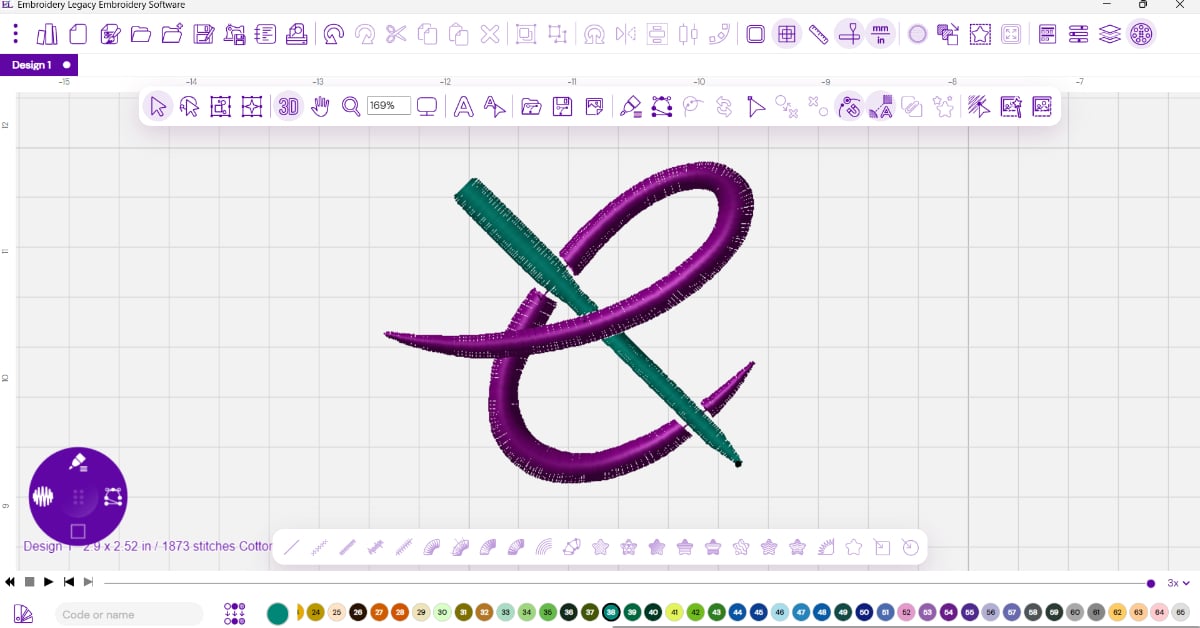
Pay attention to stitch direction and connections between shapes. Clean pathing can reduce unnecessary trims and improve the overall stitch quality.
Step 4 – Digitize Logo Text So It Stitches Cleanly
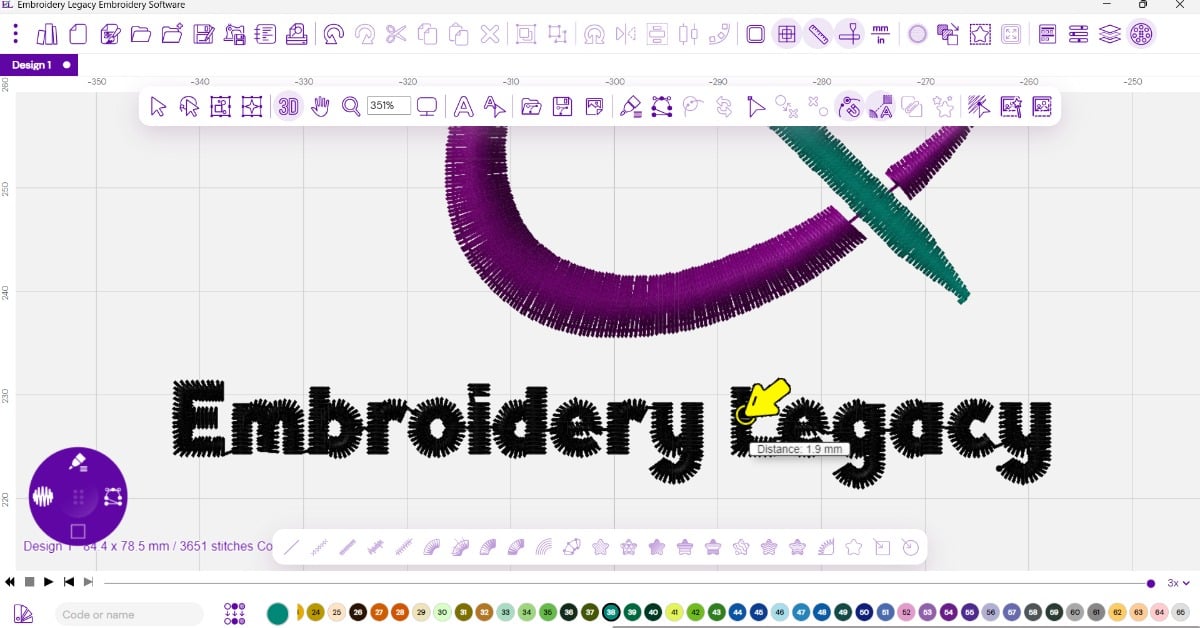
Text is often the hardest part of logo digitizing. Small lettering that looks fine on screen can easily break down when stitched. Sometimes, using a similar keyboard embroidery font already pre-loaded in your software produces a cleaner result than trying to perfectly digitize thin artwork text.
To avoid problems:
- Choose fonts that translate well to embroidery, not just ones that look identical to the artwork
- Check stitch width with a ruler tool—aim for 1–1.3 mm minimum
- Avoid trimming between every letter by connecting text where possible
Step 5 – Optimize Pathing, Trims, and Save Fabric Versions
Before finalizing the design, review the stitch sequence:
- Remove unnecessary trims
- Adjust start and stop points for smoother stitching
- Use smart joins or run connections where appropriate
Saving multiple versions of the same logo for different garments is a good practice, such as:
- Left chest on knit
- Structured caps
- Full back on denim
Each version may use different underlay, pathing, and compensation settings, but ensures consistent results across garments. The good news is that if you create your designs in your software’s native file format, resizing and editing them becomes much simpler.
Bonus tip: Improving Logo Visibility with Borders & Backgrounds
Logos don’t contrast well with the garment they’re stitched on, such as dark logos on dark sweaters. Adding contrast can significantly improve stitch clarity and readability.
Common solutions include:
- Adding a border or outline around the logo
- Digitizing a background fill behind the design
- Using run stitches for ultra-thin accents that satin stitches can’t handle
When adding backgrounds, stitch order matters. In most cases, stitch the background fills first, then sew borders and text to avoid overlaps and unwanted gaps.
DIY vs Hiring a Logo Embroidery Digitizing Service
Digitizing your own embroidery logo can take time, but the right guidance can make it easy. Once you understand the fundamentals and have the right software, you can digitize many logos in-house.
However, a logo embroidery digitizing service may be a better option when:
- The logo has extreme detail
- Tight deadlines are involved
- You’re producing high-volume commercial orders
If you’re digitizing your own company logo or just starting. DIY digitizing is a great skill to learn. It gives you complete control over your designs and unlimited creative freedom.
Best Software to Digitize a Logo (Beginner-Friendly)
Using the right embroidery digitizing software makes creating a logo significantly easier. Embroidery Legacy Digitizing Software helps beginners and professionals digitize logos with ease.
With features like:
- Fabric recipes
- Smart join
- Embroidery-friendly fonts
- Education taught by the world’s most awarded digitizer.
FAQ: Logo Digitizing for Embroidery
Ready to Digitize Your First Logo?
Learning how to digitize a logo for embroidery gives you greater control over stitch quality, consistency, and creative freedom. While general rules can guide the process, every logo is different. There’s no one-size-fits-all approach to logo digitizing.
The best way to improve your results is to learn why certain stitch types, settings, and techniques work. Having this foundation allows you to confidently adapt your digitizing approach to any logo, fabric, or placement.
Start building the foundation with our Free Digitizing 101 course. In just 20 minutes, I walk you through the embroidery digitizing process step by step. You’ll gain the confidence to digitize company logos cleanly and consistently.